


Introduction
You've decided to protect your online privacy with EdgeVPN,excellent choice! But you might be wondering: "How complicated is this going to be?" or "Will I need technical knowledge to set this up?"
Good news: Setting up EdgeVPN is remarkably simple. In fact, most users are fully protected in under 5 minutes. No technical expertise required, no complicated configurations, and no confusing settings.
In this comprehensive guide, we'll walk you through setting up EdgeVPN on every major platform with clear, step-by-step instructions and helpful tips.
Quick Start: 3-Step Overview
Before we dive into platform-specific instructions, here's what the process looks like on every device:
Step 1: Download the App
- Visit EdgeVPN website or your device's app store
- Download the appropriate app for your platform
- Install with one click
Step 2: Get Your Customer ID
- You automatically receive an anonymous customer ID
- Select your subscription plan
- Complete payment through your app store account
Step 3: Connect and Protect
- Open the EdgeVPN app
- Tap the connect button
- You're protected!
That's it. Now let's break this down for each platform.
Setting Up EdgeVPN on iPhone and iPad (iOS)
What You'll Need
- iPhone or iPad running iOS 15 or later
- Apple ID with App Store access
- 5 minutes of time
Step-by-Step Installation
1. Download from App Store
- Open the App Store on your iPhone or iPad
- Tap the Search tab at the bottom
- Type "EdgeVPN" in the search bar
- Tap "Get" next to the EdgeVPN app
- Authenticate with Face ID, Touch ID, or your Apple ID password
- Wait for download to complete (usually 10-30 seconds)
2. Get Your Customer ID
- Tap "Open" when installation completes
- The app automatically generates your anonymous customer ID
- Agree to terms of service
- Tap "Continue"
3. Choose Your Plan
- Free - Basic features, no payment required
- Weekly - $2.99/week, cancel anytime
- Monthly - $5.99/month, cancel anytime
- Yearly - $39.99/year (save 44%), best value
Select your preferred plan and complete payment through your App Store account.
4. Grant VPN Permissions
- iOS will ask: "EdgeVPN Would Like to Add VPN Configurations"
- Tap "Allow"
- Enter your device passcode if prompted
- This allows EdgeVPN to create secure VPN connection
5. Connect to VPN
- You'll see the main EdgeVPN screen
- Tap the large "Connect" button
- EdgeVPN automatically selects the fastest server
- Connection establishes in 2-5 seconds
- You'll see "Connected" and a timer showing connection duration
6. Verify Protection
- VPN icon appears in status bar (next to Wi-Fi/cellular)
- EdgeVPN app shows "Protected" status
- Your IP address is now hidden
- All traffic is encrypted
iOS Configuration Tips
Enable Auto-Connect
- Open EdgeVPN settings
- Enable "Auto-Connect on Untrusted Networks"
- EdgeVPN automatically protects you on public Wi-Fi
Configure Kill Switch
- Go to Settings > Advanced
- Enable "Kill Switch"
- Blocks internet if VPN disconnects
Choose Specific Server
- Tap "Locations" in app
- Browse 70+ countries
- Select desired server location
- Tap to connect
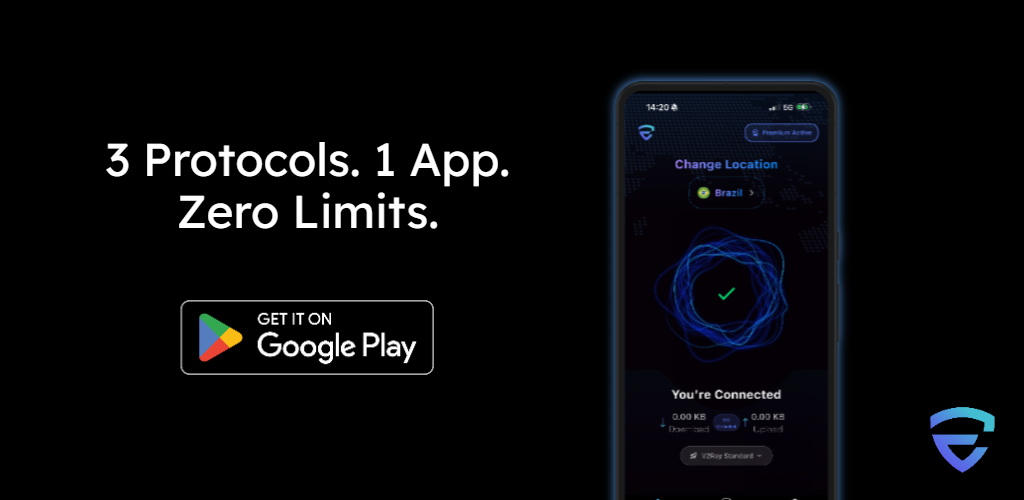
Setting Up EdgeVPN on Android
What You'll Need
- Android phone or tablet running Android 8.0 or later
- Google account with Play Store access
- 5 minutes of time
Step-by-Step Installation
1. Download from Google Play
- Open Google Play Store
- Tap the Search bar at top
- Type "EdgeVPN"
- Tap "Install" next to EdgeVPN app
- Wait for download and automatic installation
2. Get Your Customer ID
- Tap "Open" when installation completes
- The app automatically generates your anonymous customer ID
- Agree to terms of service
- Your account is ready to use
3. Select Subscription
- Free - Basic features, no payment required
- Weekly - $2.99/week, cancel anytime
- Monthly - $5.99/month, cancel anytime
- Yearly - $39.99/year (save 44%), best value
Pay via Google Play billing.
4. Grant VPN Permissions
- Android asks: "Connection request"
- Tap "OK" to allow VPN configuration
- This is normal and required for VPN functionality
5. Connect and Protect
- Tap the "Connect" button on main screen
- EdgeVPN selects optimal server automatically
- Connection establishes in seconds
- Key icon appears in notification bar when connected
6. Confirm Connection
- EdgeVPN shows "Connected" status
- Notification shows connection time
- Your traffic is now encrypted
- IP address is hidden
Android Configuration Tips
Battery Optimization Exemption
To prevent Android from killing VPN connection:
- Go to device Settings > Apps > EdgeVPN
- Select Battery > Battery optimization
- Choose "Don't optimize" for EdgeVPN
- This ensures VPN stays connected
Auto-Connect Setup
- Open EdgeVPN settings
- Enable "Auto-Connect on Wi-Fi"
- Enable "Auto-Connect on Mobile Data" (optional)
- Choose trusted networks that don't need VPN
Widget for Quick Access
- Long-press home screen
- Select "Widgets"
- Find EdgeVPN widget
- Drag to home screen for one-tap connection
Setting Up EdgeVPN on Windows
What You'll Need
- Windows 10 or Windows 11 PC
- Administrator access
- 5 minutes of time
Step-by-Step Installation
1. Download Windows App
- Visit edgevpn.com in your browser
- Click "Download for Windows"
- Save EdgeVPN-Setup.exe to your Downloads folder
- File size is approximately 15-25 MB
2. Install Application
- Open Downloads folder
- Double-click EdgeVPN-Setup.exe
- Click "Yes" when User Account Control asks for permission
- Click "Install" in the setup wizard
- Wait for installation (30-60 seconds)
- Click "Launch EdgeVPN" when complete
3. Get Your Customer ID
- The app automatically generates your anonymous customer ID
- Select subscription plan
- Complete payment securely through your payment method
4. First Connection
- Click the large "Connect" button
- Windows may show firewall prompt
- Click "Allow access" for both private and public networks
- EdgeVPN establishes connection
- Status changes to "Connected"
5. System Tray Integration
- EdgeVPN icon appears in Windows system tray (bottom-right)
- Right-click icon for quick access to:
- Connect/Disconnect
- Server selection
- Settings
- Exit
Windows Configuration Tips
Launch at Startup
- Go to EdgeVPN Settings
- Enable "Launch on Windows Startup"
- Enable "Auto-Connect on Launch"
- Always protected when you use your PC
Configure Kill Switch
- Settings > Advanced
- Enable "Kill Switch"
- Blocks internet if VPN disconnects
- Prevents accidental data leaks
Split Tunneling
- Settings > Advanced > Split Tunneling
- Add apps that should bypass VPN
- Route local services directly
- Keep VPN for sensitive traffic
Protocol Selection
- Settings > Protocol
- WireGuard - Fastest, recommended for most users
- OpenVPN - Maximum compatibility
- V2Ray - For bypassing censorship
Setting Up EdgeVPN on macOS
What You'll Need
- Mac running macOS 11 (Big Sur) or later
- Administrator access
- 5 minutes of time
Step-by-Step Installation
1. Download macOS App
- Visit edgevpn.com on your Mac
- Click "Download for macOS"
- Save EdgeVPN.dmg to Downloads
- File downloads in seconds
2. Install Application
- Open Downloads folder
- Double-click EdgeVPN.dmg
- Drag EdgeVPN app icon to Applications folder
- Eject the EdgeVPN disk image
- Open Applications folder
- Double-click EdgeVPN to launch
3. Security Permissions
- macOS may show: "EdgeVPN cannot be opened"
- Go to System Settings > Privacy & Security
- Click "Open Anyway" next to EdgeVPN message
- Click "Open" in confirmation dialog
4. Get Your Customer ID and Connect
- The app automatically generates your anonymous customer ID
- Choose subscription plan
- Click "Connect"
- Grant VPN configuration permission when prompted
- Enter your Mac password to allow VPN profile
5. Menu Bar Access
- EdgeVPN icon appears in menu bar (top-right)
- Click icon for quick access to:
- Connection status
- Server locations
- Settings
- Disconnect/Connect
macOS Configuration Tips
VPN On Demand
- Settings > Auto-Connect
- Enable "Connect on untrusted networks"
- macOS automatically triggers VPN on public Wi-Fi
Keyboard Shortcuts
- ⌘ + Shift + V - Quick connect/disconnect
- ⌘ + , - Open settings
- ⌘ + L - Open locations
Network Extension Permissions
- System Settings > Network
- EdgeVPN appears as VPN configuration
- Can enable/disable from Network preferences
Setting Up EdgeVPN on Linux
What You'll Need
- Linux distribution (Ubuntu, Debian, Fedora, Arch, etc.)
- Terminal access
- Basic command-line familiarity
- 5-10 minutes of time
Installation Methods
Option 1: AppImage (Universal)
# Download AppImage
wget https://edgevpn.com/downloads/EdgeVPN-latest.AppImage

# Make executable
chmod +x EdgeVPN-latest.AppImage

# Run
./EdgeVPN-latest.AppImage
Option 2: Debian/Ubuntu Package
# Download .deb package
wget https://edgevpn.com/downloads/edgevpn_latest_amd64.deb

# Install
sudo dpkg -i edgevpn_latest_amd64.deb

# Fix dependencies if needed
sudo apt-get install -f

# Launch
edgevpn
Option 3: Fedora/CentOS Package
# Download .rpm package
wget https://edgevpn.com/downloads/edgevpn_latest.rpm

# Install
sudo dnf install edgevpn_latest.rpm

# Launch
edgevpn
Option 4: Command Line Client
For servers or headless systems:
# Install CLI client
sudo curl -L https://edgevpn.com/downloads/edgevpn-cli -o /usr/local/bin/edgevpn-cli
sudo chmod +x /usr/local/bin/edgevpn-cli

# Login
edgevpn-cli login

# Connect
edgevpn-cli connect

# Check status
edgevpn-cli status
Linux Configuration Tips
Auto-Start on Boot
# Create systemd service
sudo nano /etc/systemd/system/edgevpn.service
Kill Switch via iptables
# EdgeVPN CLI includes built-in kill switch
edgevpn-cli set killswitch on
Setting Up EdgeVPN on Router
Protect all devices on your network automatically.
Compatible Routers
- DD-WRT
- OpenWrt
- Tomato
- ASUS with Asuswrt-Merlin
- Newer routers with built-in VPN client support
General Process
1. Access Router Admin Panel
- Open browser
- Navigate to router IP (usually 192.168.1.1 or 192.168.0.1)
- Login with admin credentials
2. Find VPN Client Section
- Look for "VPN Client" or "VPN" in settings
- Select "Add VPN Connection"
3. Download EdgeVPN Configuration
- Login to EdgeVPN dashboard on computer
- Go to "Router Setup"
- Download OpenVPN or WireGuard config file
4. Upload Configuration
- In router VPN settings, upload downloaded config
- Enter EdgeVPN credentials
- Save and apply settings
5. Connect and Test
- Enable VPN connection in router
- All connected devices now protected automatically
- Test by visiting IP check website
Benefits of Router VPN:
- Protects smart TVs, game consoles, IoT devices
- Entire household automatically secured
- Single subscription covers up to 3 devices
- Set it and forget it
Troubleshooting Common Setup Issues
"VPN Connection Failed"
Solutions:
- Check internet connection works without VPN
- Try different server location
- Switch protocol (WireGuard to OpenVPN or vice versa)
- Temporarily disable firewall/antivirus
- Restart device and try again
"Installation Blocked by Security Software"
Solutions:
- Temporarily disable antivirus during installation
- Add EdgeVPN to antivirus exclusions
- Download from official website only
- Verify installer digital signature
"Can't Access Certain Websites"
Solutions:
- Clear browser cache and cookies
- Try different VPN server
- Disable browser extensions temporarily
- Use split tunneling to exclude specific sites
"Slow Internet Speed"
Solutions:
- Choose geographically closer server
- Switch to WireGuard protocol
- Close bandwidth-heavy applications
- Test speed without VPN to establish baseline
- Contact support if speeds consistently poor
Post-Setup: Optimizing Your EdgeVPN Experience
Customize Settings
Auto-Connect Rules
- Set trusted networks (home, office) that don't need VPN
- Auto-connect on all other networks
- Choose default server location
Protocol Preferences
- WireGuard - Best for speed and battery life
- OpenVPN - Maximum compatibility
- V2Ray - Censorship circumvention
Server Favorites
- Star frequently used server locations
- Quick access to favorite servers
- Organize by use case (streaming, gaming, general)
Test Your Protection
Verify IP Address is Hidden
- Visit whatismyip.com
- Confirm IP matches VPN server location
- Not your real IP address
Check for DNS Leaks
- Visit dnsleaktest.com
- Run extended test
- Ensure only EdgeVPN DNS servers appear
Test Kill Switch
- Enable kill switch in settings
- Disconnect VPN
- Try to access internet
- Should be blocked until VPN reconnects
Getting Help and Support
Support Resources
In-App Support
- Help Center with searchable guides
- Submit support ticket
- Video tutorials
EdgeVPN Website
- Comprehensive knowledge base
- Setup guides for all platforms
- FAQ section
Contact Methods
- Email: support@fasttec.net
- Response time: Usually under 2 hours
Conclusion
Congratulations! You've successfully set up EdgeVPN and taken control of your online privacy and security. What seemed potentially complicated took just a few minutes and required zero technical expertise.
You're now protected from:
- ISP surveillance and logging
- Hackers on public Wi-Fi
- Tracking and profiling
- Geo-restrictions and censorship
- Data theft and interception
Remember to:
- Keep EdgeVPN updated for latest security features
- Use auto-connect on public networks
- Enable kill switch for maximum protection
- Contact support if you have any questions
Welcome to the EdgeVPN community of over 158,000 users who prioritize their digital privacy. Enjoy your secure, unrestricted internet access!
Have questions about your setup? Our support team is ready to help at support@fasttec.net.
Stay secure, stay private, stay protected with EdgeVPN.